Subitem Pro Templates User Guide
Create, save, and deploy customizable subitem templates with column values to streamline your Monday.com workflows
Introduction
Subitem Pro Templates is specifically designed for managing both items and their corresponding subitems. This powerful app allows you to:
Save Subitem Configurations
Create reusable templates with pre-filled column values, saving time on repetitive tasks
Deploy with One Click
Apply entire subitem structures instantly to any item in your board
Share with Your Team
Set templates at user or account level for personal or team-wide access
Automate Deployment
Use Monday.com automations to deploy templates based on triggers
Installation
Navigate to Item View
The Subitem Pro Templates app must be installed from the item view, not the board view.
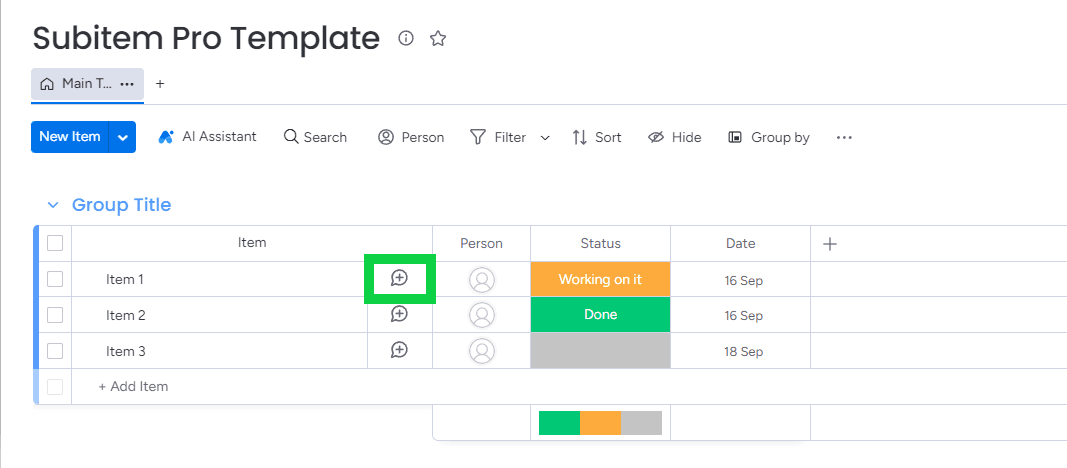
Begin by selecting your board, then open the conversation section of any item.
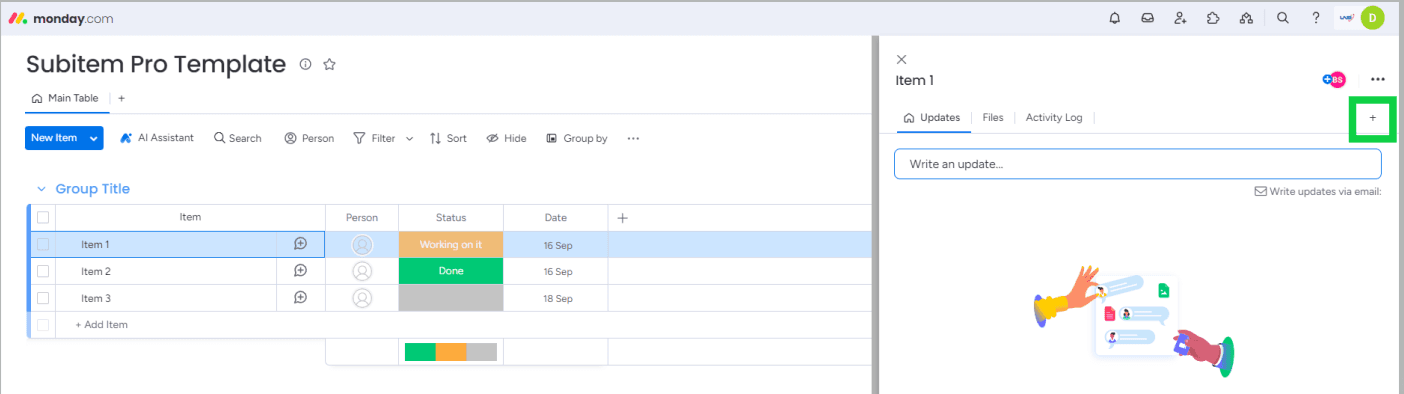
Search for the App
Click on the Plus (+) button and search for “Subitem Pro Templates”
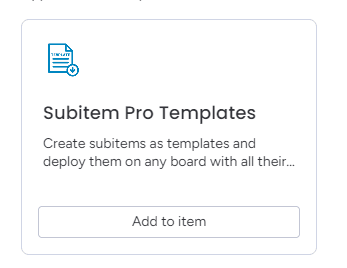
Add to All Items
Add the app to the item — it will automatically be added to all items on the selected board
Start Creating Templates
You’re all set! The app is now ready to use across your entire board.
Quick video guide: Watch this Loom recording for a step-by-step visual walkthrough of the installation process.
Create a Template
Prepare Your Subitems
Before creating a template, set up your subitems exactly as you want them to appear when deployed.
Create Your Subitems
Add all the subitems you want to save as a template to a main item
Customize Column Values
Set up the values for each subitem column:
- Assign people using the People column
- Set priorities with Status columns
- Add dates, text, or any other column values
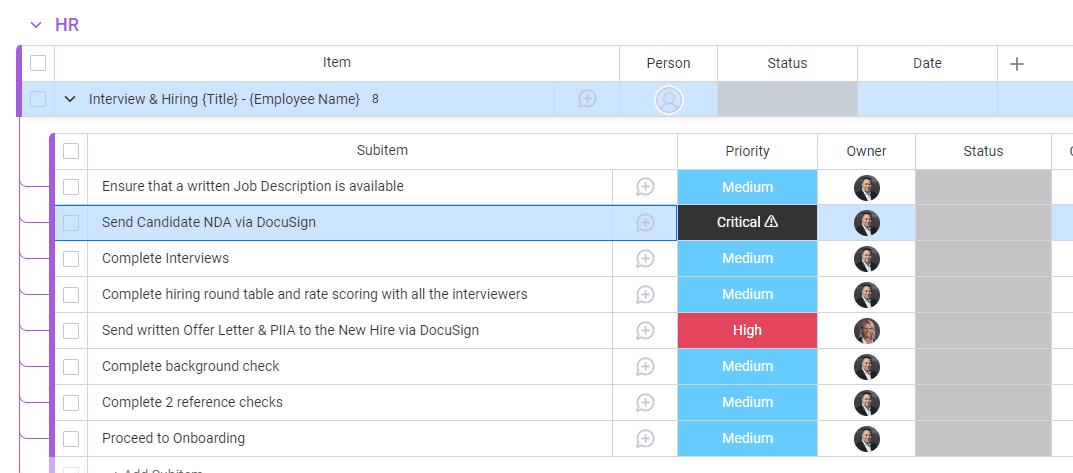
Example configuration:
- Subitem 1: Task Planning | Assigned: John | Priority: High
- Subitem 2: Execution | Assigned: Sarah | Priority: Medium
- Subitem 3: Review | Assigned: Mike | Priority: Low
💡 All column values you set will be saved as part of the template, making it easy to replicate entire workflows.
Save as Template
Open Item View
Left-click on the main item containing all your configured subitems to open the Item view. The right panel will appear.
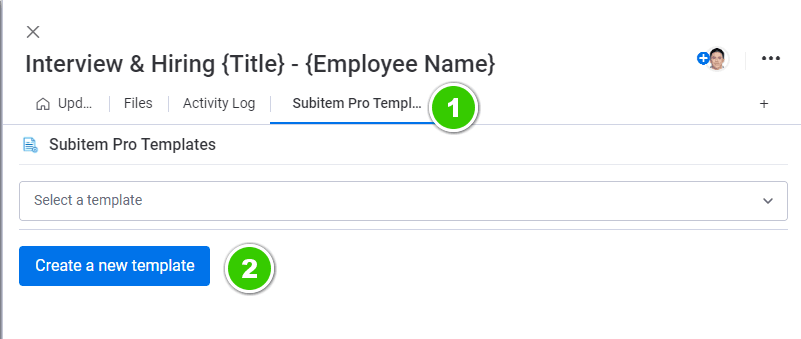
Access Template Tab
Go to the Subitem Pro Templates tab in the right panel
Click Create New Template
Click the “Create a new template” button
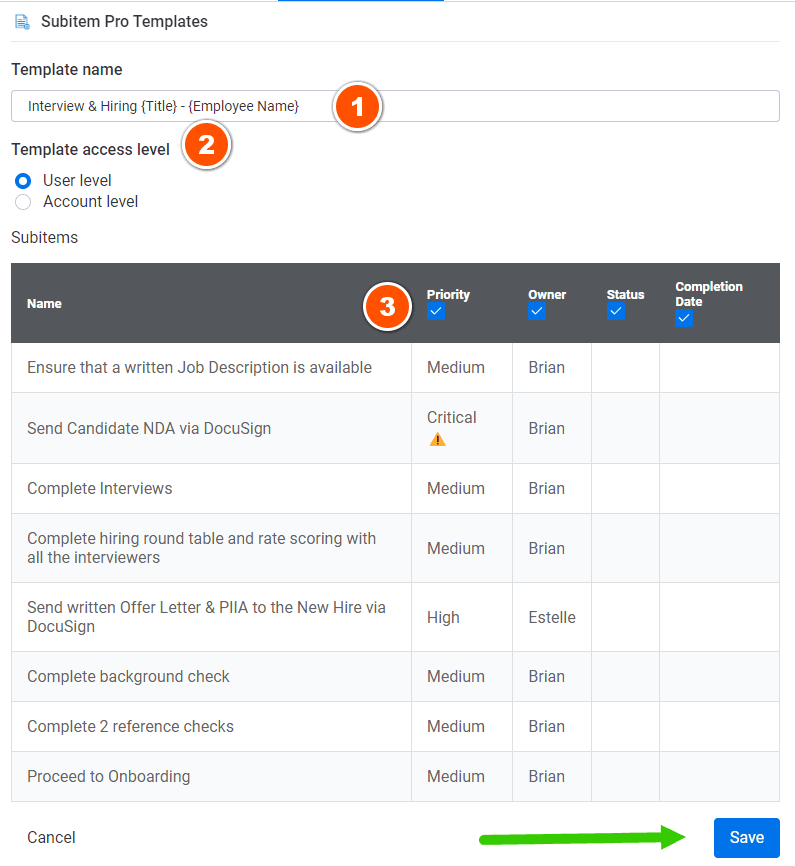
Configure Template Settings
Customize three key sections before saving:
Rename your template. By default, it uses the main item’s name.
Choose User Level (personal) or Account Level (team-wide)
Select which column values to save as part of your template
Permission Tip: Use User Level for personal workflows and Account Level to share templates with your entire team.
Reordering Subitems
Organize the order in which subitems appear when deployed from your template.
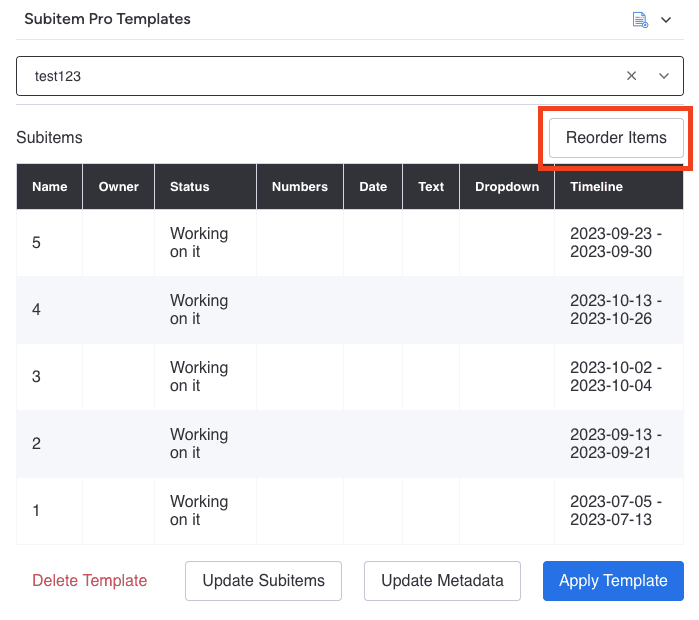
Select Template to Edit
Open the template you want to modify from the Subitem Pro Templates tab
Click “Reorder Items”
Left-click on the “Reorder Items” button
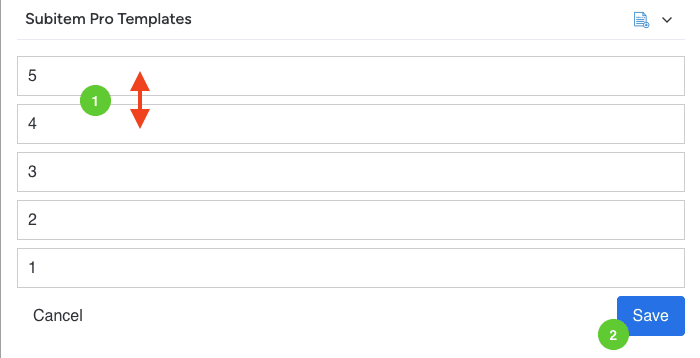
Drag and Drop
A reordering interface will appear. Drag and drop subitems into your preferred order.
Save Changes
Click Save once you’ve finished reordering
💡 The order you set here will be maintained every time you deploy this template.
Deploying Templates
You can deploy your saved templates in two ways: manually via the right panel or automatically using Monday.com automations.
Important: To deploy subitems, your board must have had at least one subitem created previously. For new boards, create a dummy subitem and delete it — this is required by Monday.com’s framework.
Method 1: Manual Deployment via Right Panel
The quickest way to apply a template to any item.
Open the Target Item
Left-click on the item where you want to deploy your template
Access Template Tab
Navigate to the Subitem Pro Templates tab in the right panel
Select Your Template
Choose the template you want to deploy. You’ll see the template interface with three sections:
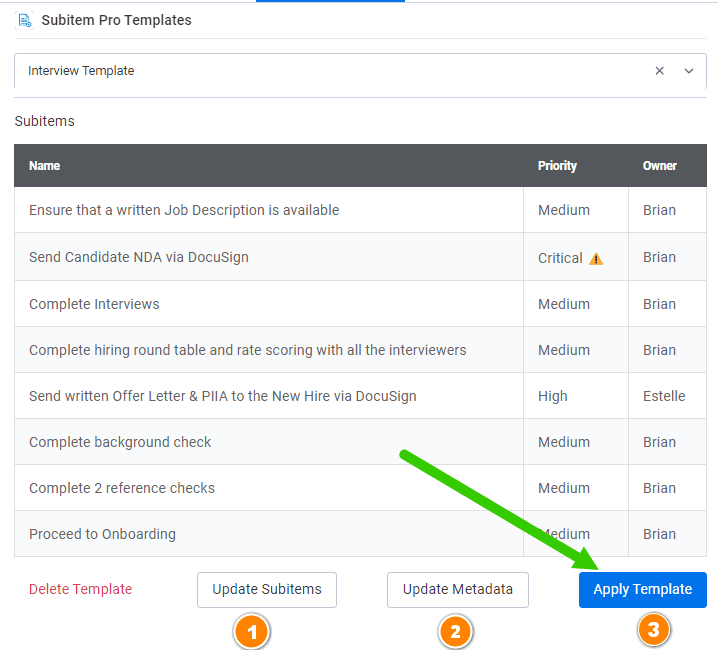
Section 1: Update Subitems
Modify your template without recreating it from scratch. Use this when you need to:
- • Add or remove subitem tasks
- • Rename subitems
- • Modify column values
- • Update assignments or priorities
Section 2: Update Metadata
Change template name or permission level (User vs Account)
Section 3: Apply Template ⚡
Click this button to deploy all subitems from the template to the current item
Click “Apply Template”
Click the Apply Template button (Section 3) to deploy
Monitor Progress
A progress bar will appear while subitems are being deployed

Confirmation
Once complete, you’ll see a success message

Method 2: Automated Deployment with Custom Automations
Use Monday.com automations to deploy templates automatically based on triggers.
Important Limitation: The “Apply Template” action in custom automations is not compatible with subitem triggers, except for the “Subitem Created” trigger (which works due to a loophole). Using other subitem column triggers will not deploy the template.
Common Use Case: Status-Based Deployment
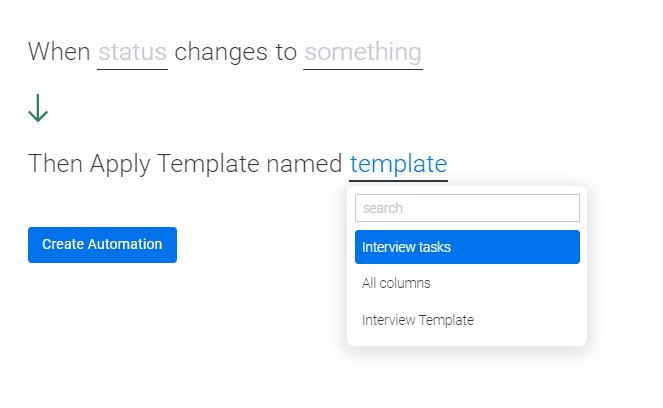
The most popular automation: “When a status changes to something, deploy a subitem template”
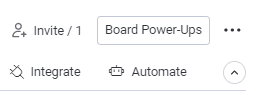
Open Automations
Click on the Automate section of your board
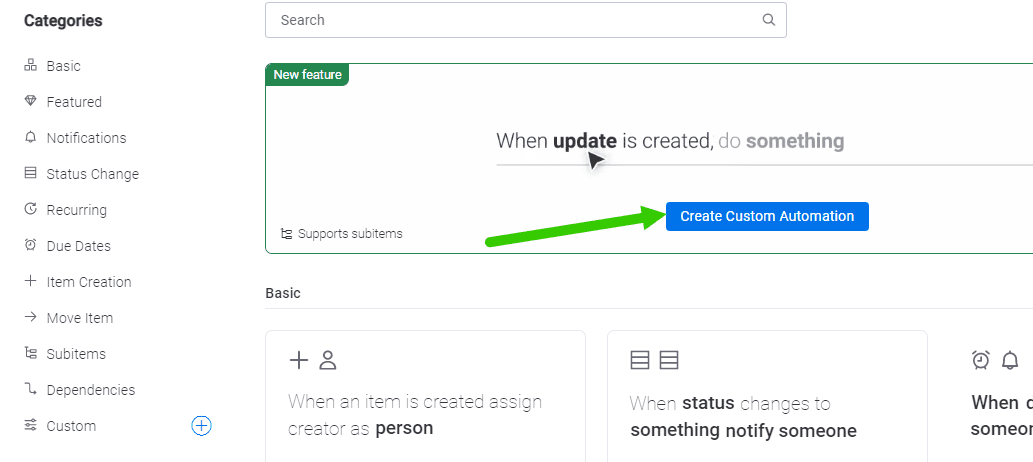
Create Custom Automation
Click “Create a custom automation”
Set Up Trigger
Configure your trigger: “When status changes to something”
Add Action
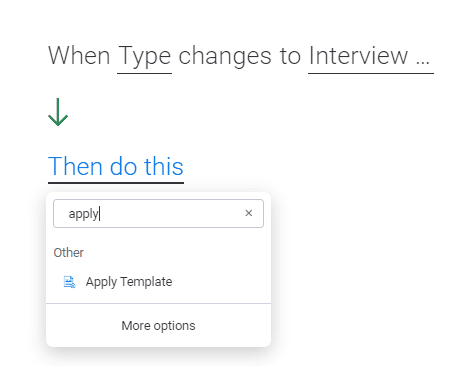
Click “Then do this” and search for “Apply Template”
Wait for Templates to Load
You should see a loading message. Your templates are being fetched.
You may be temporarily redirected to your board. After a few seconds, return to the automation — your templates will now appear.
Select Template
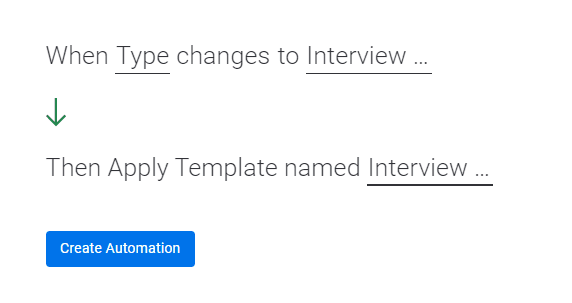
Click on the template dropdown and select your desired template from the list
Save Automation
Click “Create Automation” to activate the automation
Automation Ideas:
- Deploy project phases when status changes to “Started”
- Add standard tasks when a deal moves to “In Progress”
- Create checklist subitems when status is “Ready for Review”
Common Automation Triggers
Here are popular automation triggers that work well with Subitem Pro Templates:
❌ Avoid: Using subitem column changes as triggers (except “Subitem Created”) — these will not deploy templates due to Monday.com limitations.
Template Management Tips
Best Practices
Common Workflows
Project Management
Project Management Template
Use Case: Deploy standard project phases for every new project
Template Structure:
- Planning Phase → Assigned: Project Manager → Priority: High
- Execution Phase → Assigned: Development Team → Priority: High
- Testing Phase → Assigned: QA Team → Priority: Medium
- Review Phase → Assigned: Stakeholders → Priority: Medium
- Launch Phase → Assigned: Marketing Team → Priority: High
Automation: When status changes to “Project Started”, deploy “Project Phases” template
Troubleshooting
Template Not Deploying?
Issue: Template doesn’t deploy when using automation
Solutions:
- ✅ Ensure you’re not using subitem column changes as triggers (except “Subitem Created”)
- ✅ Verify the board has had at least one subitem created previously
- ✅ Check that the template has User or Account level permission
- ✅ Confirm the automation is active and correctly configured
Templates Not Appearing in Automation?
Issue: Templates don’t load in the automation dropdown
Solutions:
- ✅ Wait a few seconds — templates may need time to load
- ✅ You may be redirected to your board temporarily — return to the automation
- ✅ Refresh the page if templates still don’t appear
- ✅ Ensure templates exist and have proper permissions
Need to Deploy on New Boards?
Issue: Cannot deploy subitems on a brand new board
Solution:
- ✅ Create a dummy subitem manually
- ✅ Delete the dummy subitem
- ✅ This initializes Monday.com’s subitem framework
- ✅ Now you can deploy templates normally
Permission Levels Explained
Understanding the difference between User and Account level permissions:
User Level
Best for:
- Personal task lists
- Experimental templates
- Individual workflows
Account Level
Best for:
- Company-wide processes
- Standard operating procedures
- Team collaboration
💡 Recommendation: Start with User Level to refine your template, then switch to Account Level once it’s ready for team use.
Support & Resources
Need additional help or want to learn more about Subitem Pro Templates?
Official Website
Explore Subitem Pro Templates and other BeelabX apps
Contact Support
Get help from our support team
Need Assistance?
Our dedicated support team is ready to help you maximize the potential of Subitem Pro Templates. Whether you need help with template creation, automation setup, or troubleshooting, we’re here for you.
Contact Support Team →