User Guide

Timeline To Date allows you to synchronize Timeline columns with Date columns in Monday.com. Perfect for keeping your project timelines and individual dates in sync automatically.
Overview
Timeline To Date is a Monday.com app that allows you to synchronize Timeline columns with Date columns. This ensures that your project timelines and individual dates are always aligned, saving you time and reducing manual updates.
Core Capabilities
Timeline Synchronization
- • Sync Timeline columns with Date columns
- • Update start and end dates automatically
- • Keep project timelines and dates in sync
Automation Triggers
- • When timeline changes
- • When start or end date changes
- • Customizable synchronization directions
Note: Ensure that your board has both Timeline and Date columns before setting up the synchronization.
Getting Started
🔹 Step-by-Step Setup
1. Open your Monday.com board
Navigate to the board where you want to set up Timeline To Date.2. Add Timeline and Date columns to your board
Ensure that your board has both a Timeline column and at least one Date column.3. Select the recipe with the direction to synchronize
Go to the Integration Center of your board and select a Timeline To Date recipe.4. Fill in the required fields
💡 Pro tip: Start by identifying the Timeline and Date columns you want to synchronize, then select the appropriate recipe.
Automation Recipes
Timeline To Date provides preset recipes for synchronizing Timeline and Date columns. Here are the available options:
Timeline to Dates
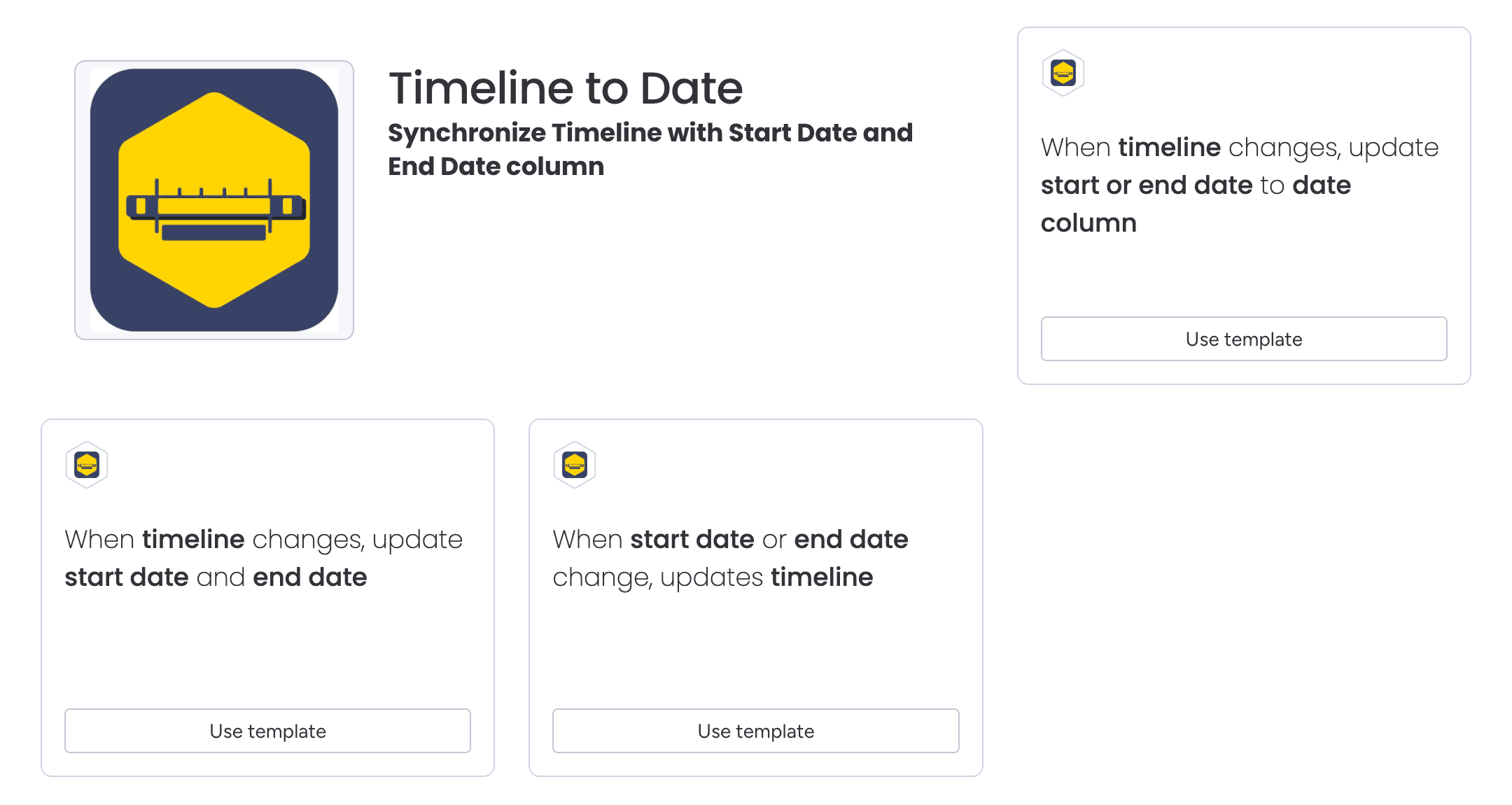
📌 When timeline changes, update start date and end date
Using this recipe, you can set an automation to automatically update 2 defined date columns (corresponding to start date and end date of the timeline) whenever the timeline column changes.
Use Cases
1. Synchronize Timeline with Start and End Dates
Overview
Overview
This use case allows you to keep your Timeline column in sync with two Date columns representing the start and end dates. Whenever the Timeline changes, the corresponding Date columns are updated automatically.
2. Synchronize Start and End Dates with Timeline
Overview
Overview
This use case allows you to update the Timeline column whenever the start and end dates in the Date columns change. This ensures that your Timeline is always up-to-date with the latest dates.
3. Synchronize Timeline with a Single Date
Overview
Overview
This use case allows you to synchronize either the start date or the end date of the Timeline with a single Date column. This is useful when you only need to keep one date in sync.
Appendix
Supported Columns
Timeline To Date supports the following column types for synchronization:
| Column Type | Synchronize From | Synchronize To |
|---|---|---|
| 📅 Timeline | ✅ | ✅ |
| 📅 Date | ✅ | ✅ |
Support & Resources
Need additional help or want to learn more about Timeline To Date?
Official Website
Explore Timeline To Date features and other BeelabX apps
Contact Support
Get help from our support team
Need Assistance?
Our dedicated support team is ready to help you get the most out of Timeline To Date. Whether you have questions about setup, synchronization, or advanced automation recipes, we’re here to assist.
Contact Support Team →